One booth, one add-on
The media booth is the product: it captures the session from downrange and sells it right at the lane, with a reaction timer built in. The target camera is the optional add-on: it checks hits without calling the paper back and unlocks Dual View, both angles in one video. Designed to run with minimal staff time. Here's each piece, step by step.
MEDIA BOOTH
The experience does the selling.
From the trigger pull to the download link, here's what your customer experiences at the lane.
Customer starts a session
They walk up to the tablet at their lane, pick a reaction timer option if they want one, and tap "Start Session." Recording is always free, so every shooter can try it.
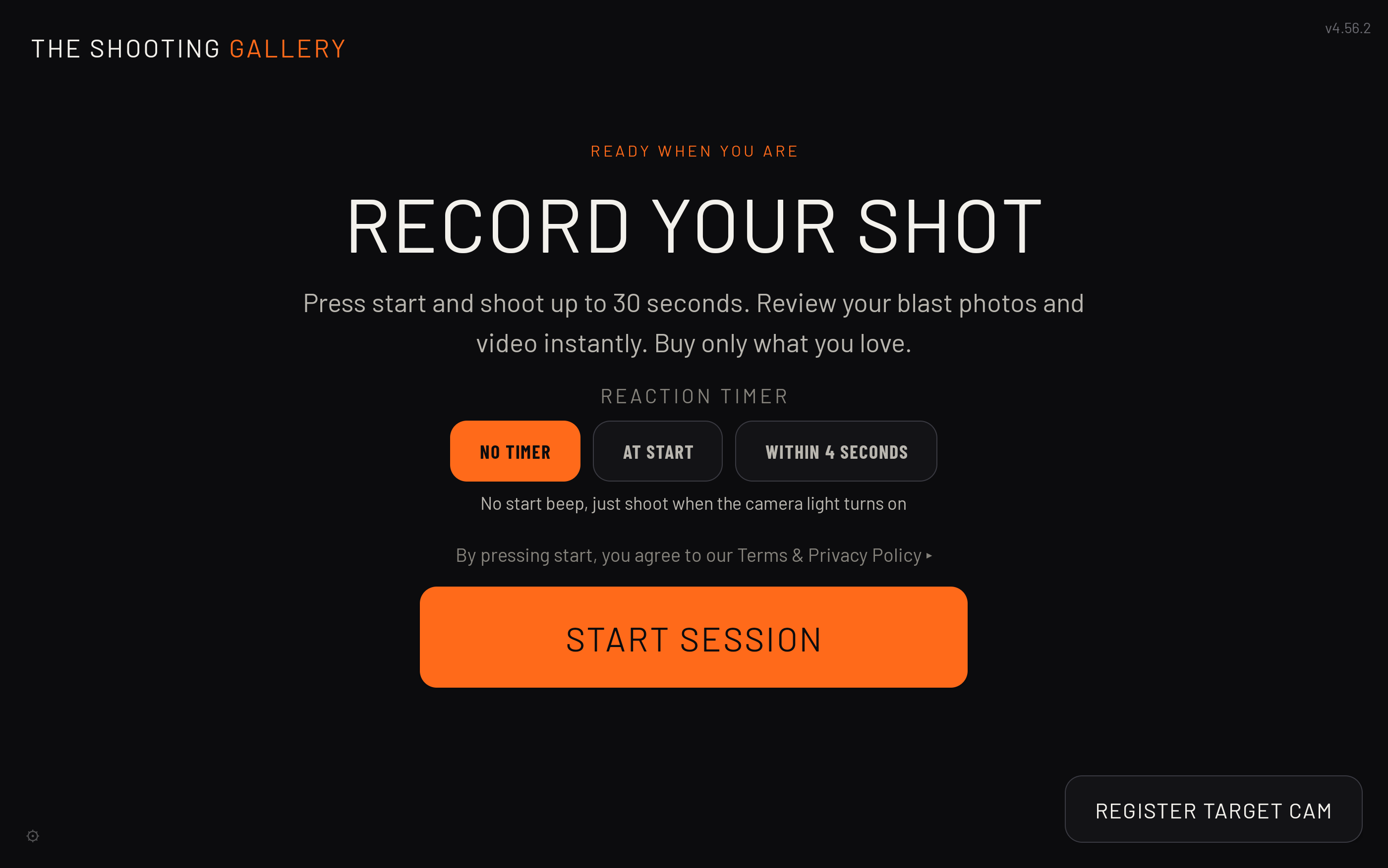 No staff needed to start. The lane tablet walks them through it.
A countdown to go time
A 5-second countdown gives the shooter time to get set before the camera's flash comes on downrange. Light on means go.
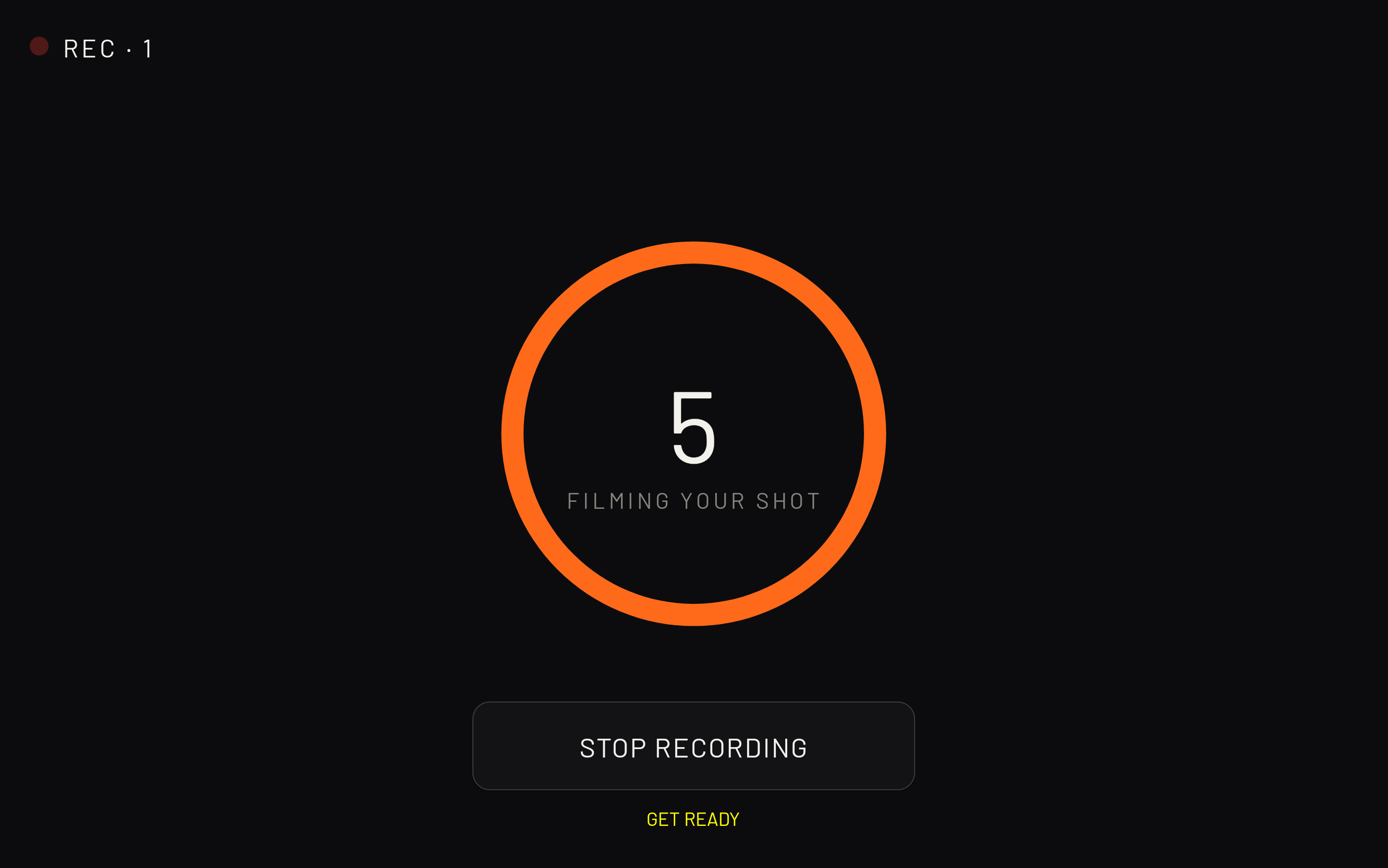 The flash is the cue. When the camera light turns on, it's time to shoot.
Up to 30 seconds, on their terms
The downrange camera captures 4K for up to 30 seconds. Shoot the whole window or tap stop whenever the string is done.
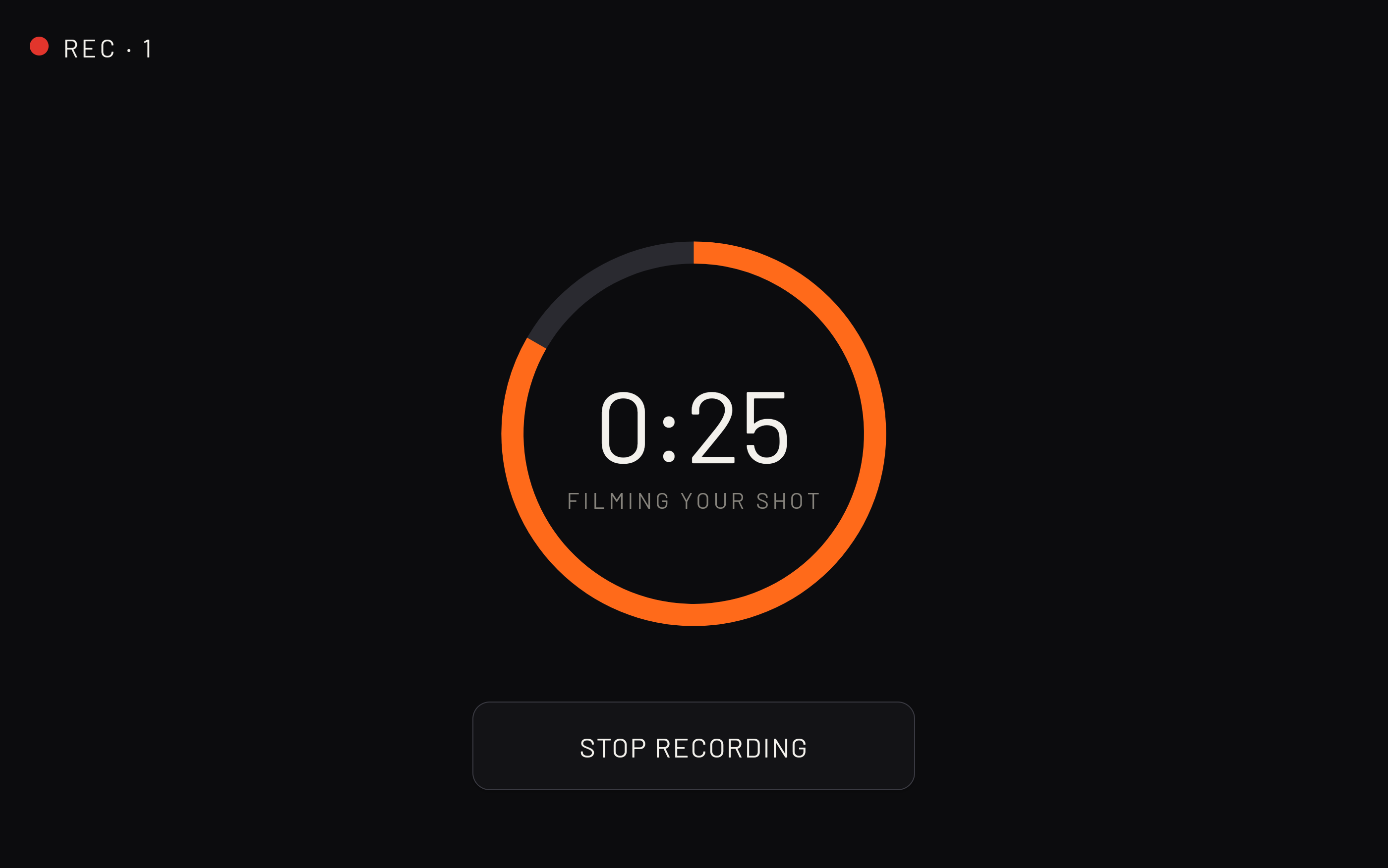 The camera shows them from the front, their face, grip, and stance at the exact moment of the shot. It's a view of themselves they've never had.
Proprietary blast detection
The moment recording ends, our detection engine isolates the muzzle-blast moments and extracts them as high-resolution photos, in under a minute.
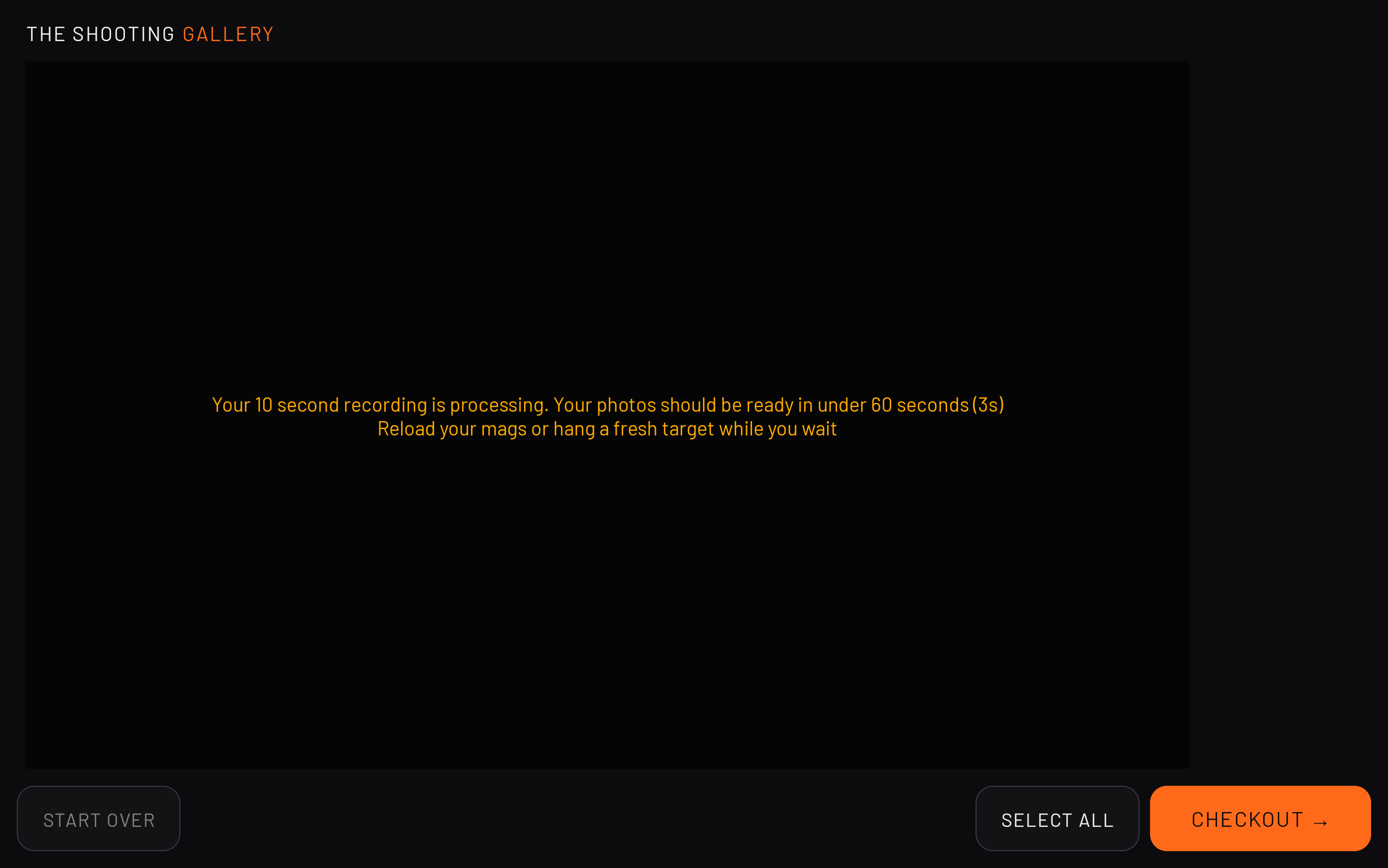 Built specifically for indoor ranges: it handles varying light, different calibers, and rapid strings of fire. How it works is our secret.
Customer browses their captures
Video and photos appear on the kiosk. They swipe through, play the video, and pick what to keep. The system surfaces the best frames; they make the final call. If a target camera was out for the session, target-only and dual-view videos show up alongside the shooter view.
Take payment at the kiosk
Photos, video, or both. Take payment the way that fits your range, tap-to-pay at the lane through our checkout vendor, or ticket sales at your front desk. Enter an email and it's done in seconds; coupon codes and gift cards work either way.
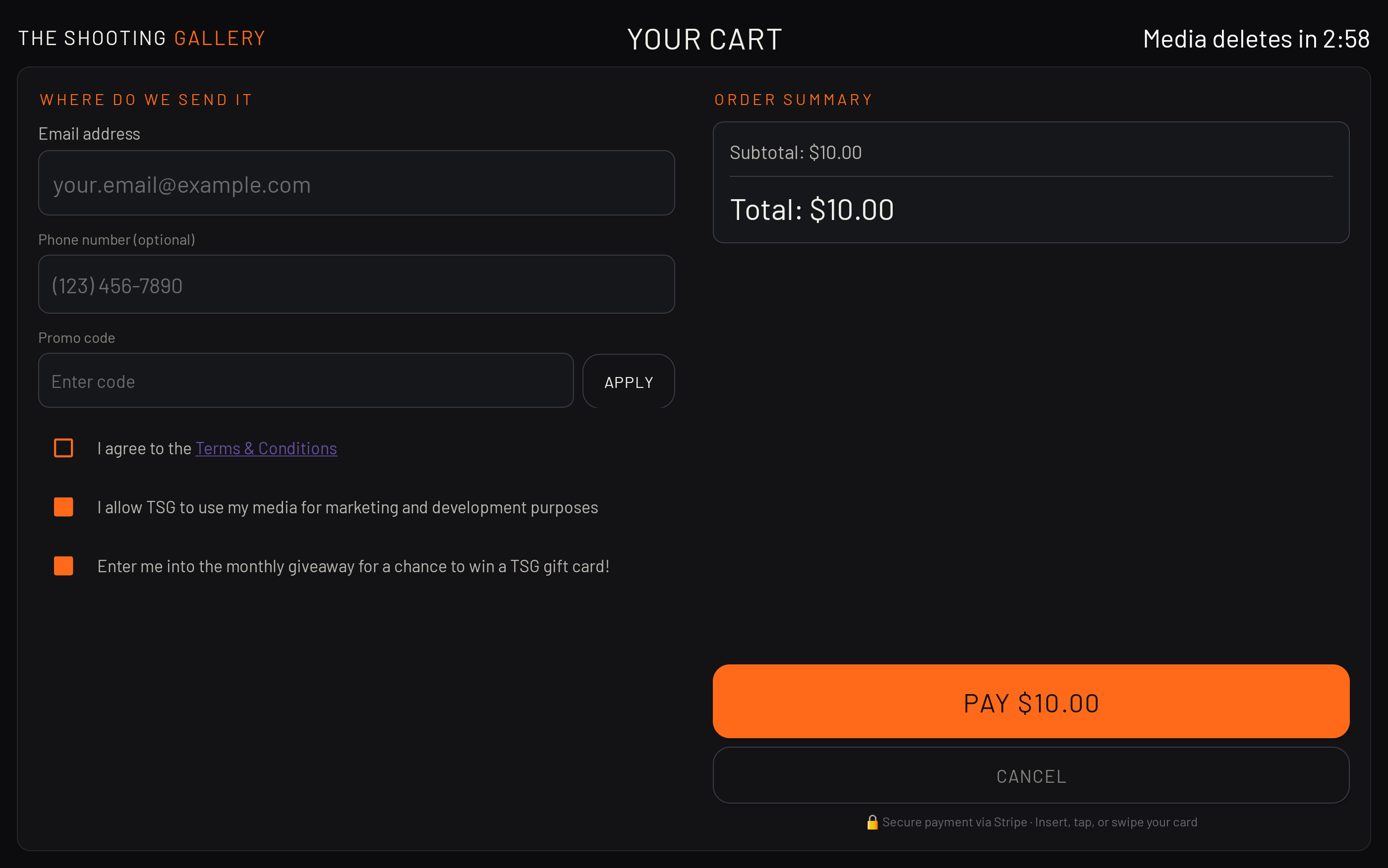 You choose the checkout. Some ranges want everything handled at the lane, others want sales at the counter. Both work out of the box.
Media delivered instantly
A download link arrives by email within seconds, accessible from any device and stored securely for 30 days.
REACTION TIMER
Your draw, on the clock.
Choose the start
When starting a session, choose no timer, a tone as recording starts, or a random tone somewhere in the first 4 seconds. No extra hardware, no extra cost, it rides inside the same 30-second recording.
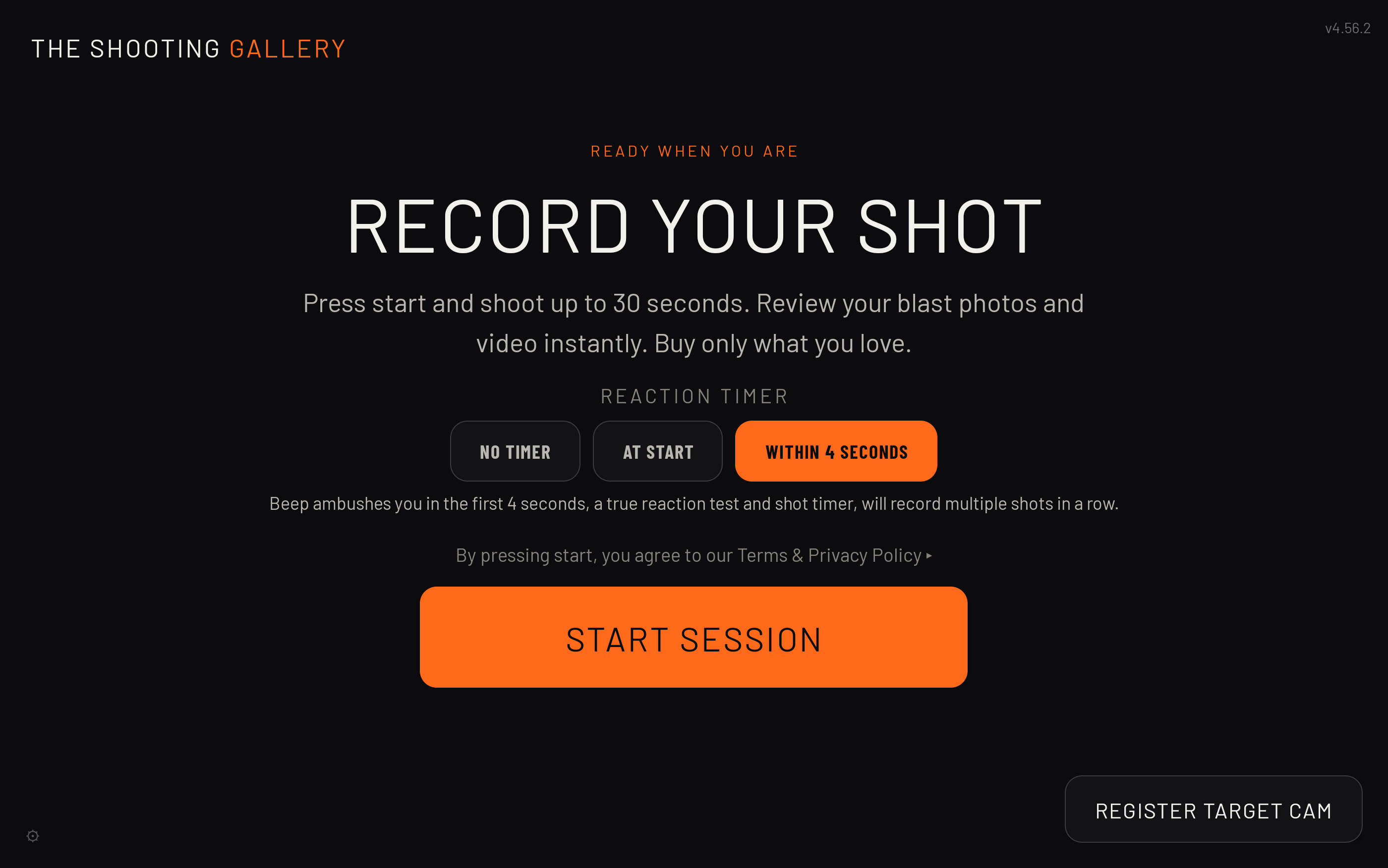 Three ways to run it. Skip it for a casual session. A straight tone for pace work. A random one when you want an honest test of your draw.
The clock starts at the beep
The video captures the tone, the running clock, and the reaction times as the shots land. Technique and times play back in one clip, so you see what your hands did and how fast they did it.
A summary at the end
The video closes with a summary of the session's reaction times, and a photo of the final results is available too. Run it again and race yourself, or hand the lane to a friend and settle it.
TARGET CAM
Check your target without calling it back.
Grab a camera at the front desk
Target cameras are checked out at the counter like eyes and ears. They work on any lane, so a handful of units covers the whole range. Each range decides how to offer them, by the session, with lane time, or however fits.
The camera rides with your target
Set the camera, send your target out, and shoot your string. No cycling the carrier back and forth after every string to see where you hit. And while it's out, it joins your media booth recordings, capturing the target side of each 30-second session.
New holes come back circled and numbered
Tap Check Target on the lane tablet. The system reviews what the camera saw and marks each fresh hole, circled and numbered, so you know exactly what that string did.
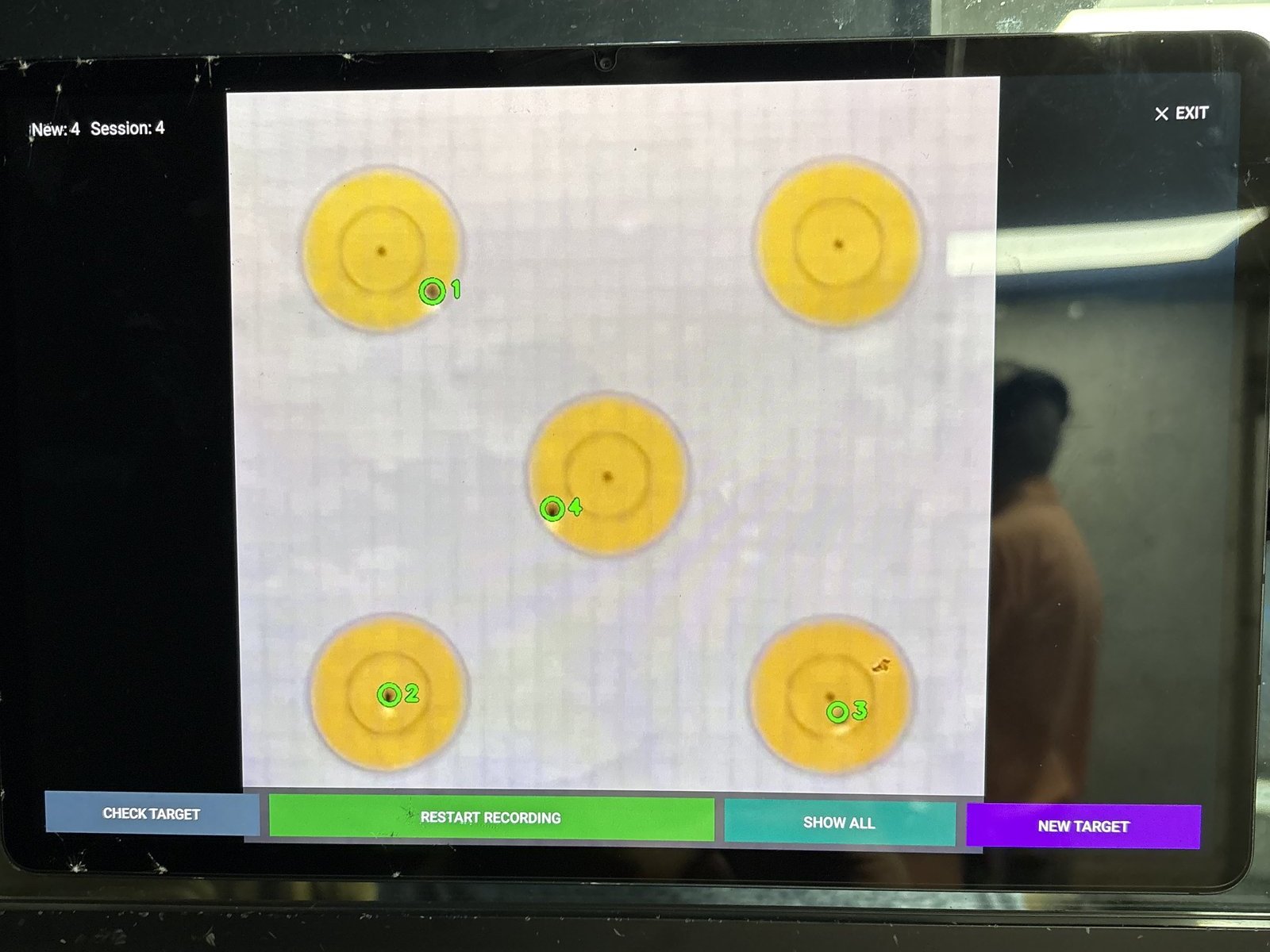 A fresh string comes back checked. Each new hole circled and numbered.
The whole session at a glance
Tap Show All and every string lights up in its own color, with a running count of holes and strings. Adjust your grip, shoot another string, check it, and watch the session evolve. Tap New Target when you hang fresh paper and start clean.
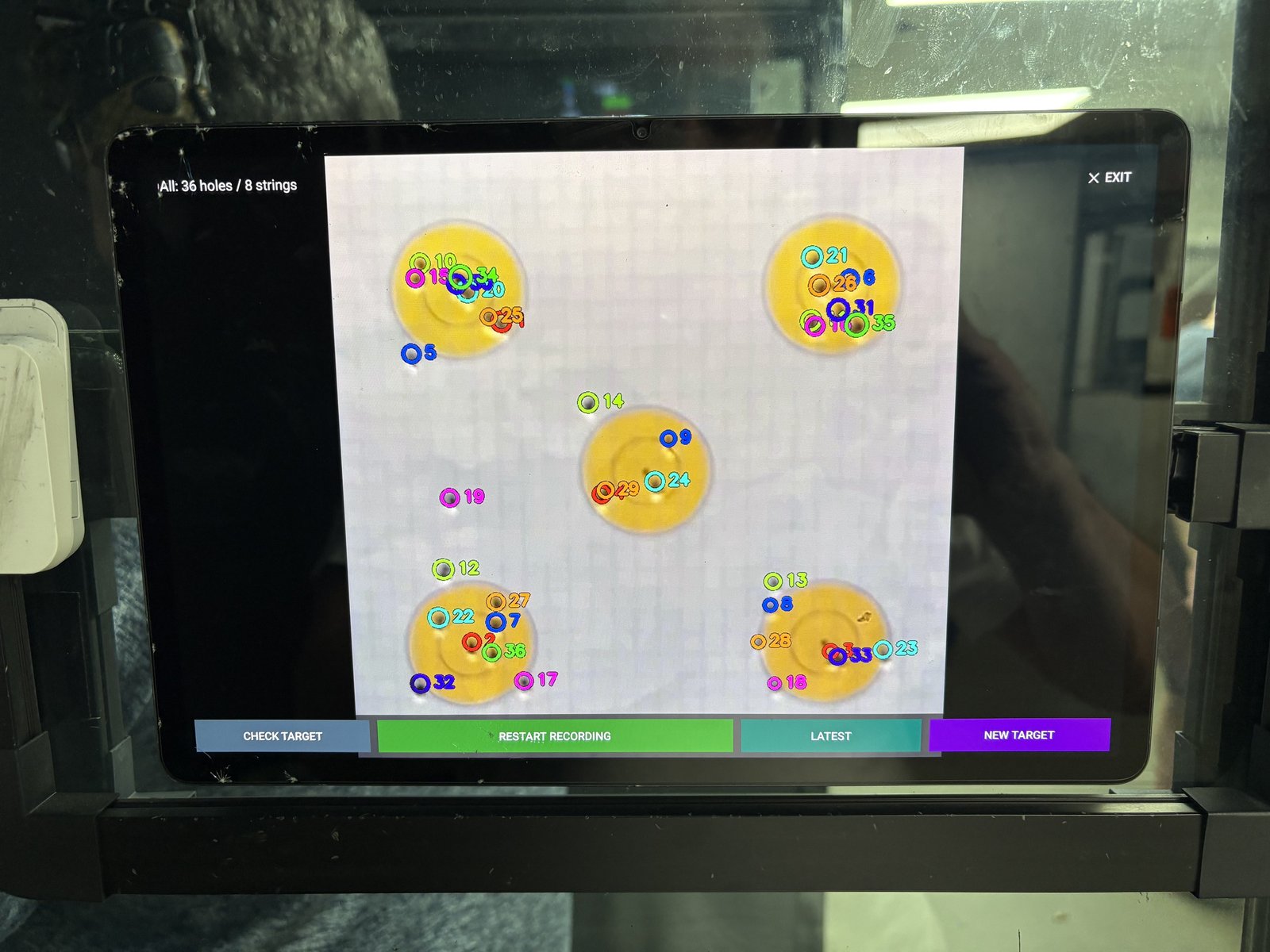 36 holes across 8 strings, every string in its own color.
DUAL VIEW
One camera on you. One on your target. One video.
Send a target camera out with your paper
Check a target camera out at the front desk and it rides downrange with your target. It works on any lane, so pairing it with the media booth takes nothing more than having it out.
One tap, two cameras
Start a session at the lane tablet like any booth recording. The shooter camera catches the muzzle blast from downrange while the target camera watches the paper, both rolling on the same 30 seconds.
Both halves of the story in one video
At review, the dual-view video appears alongside the shooter view: your face and stance as you fire, and the holes appearing downrange, in a single frame. Buy it at the lane and the download link hits your email in seconds.
Want TSG at your range?
Let's talk about what this looks like at your facility.
or call 202-664-0535